Documentation
Everything you need to know about using Opus Translate.
🚀 Quick Start Guide
1Install the App
Install Opus Translate from the Shopify App Store. After installation, you'll be redirected to the app dashboard.

2Configure Your Settings
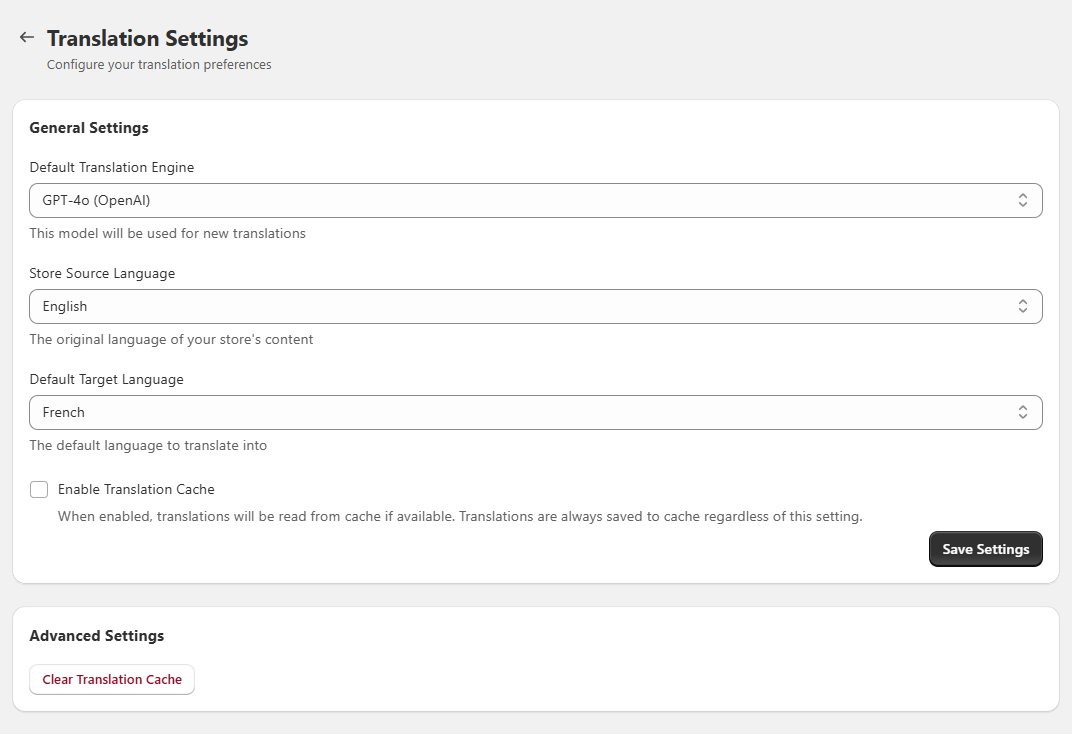
Go to the Settings page to configure your default languages and translation engine:
- Source Language: The language your content is written in (usually your store's primary language)
- Target Language: The default language you want to translate to
- Translation Engine: Choose from OpenAI, Gemini, or Claude
3Translate Your Content
Navigate to the Resources page and choose what you want to translate:
- Products: Translate product titles, descriptions, and SEO fields
- Collections: Translate collection titles and descriptions
- Pages: Translate static page content
- Articles: Translate blog posts
- Menus: Translate navigation menu items

📖 Feature Guides
Single Item Translation
To translate a single product, collection, or other content:
- Go to the Resources page and select the content type tab
- Click "Select" to choose the specific item using Shopify's resource picker
- Choose your source and target languages
- Select your preferred translation engine
- Click "Translate" to start the translation
Batch Translation
To translate all items of a content type at once:
- Go to the Resources page and select the content type tab
- Configure your source and target languages
- Optionally enable "Force Translate" to re-translate items that already have translations
- Click the "Translate All" button
- The app will create translation jobs for all items
Note: Batch translation may take some time depending on the number of items. You can monitor progress on the Jobs page.
Translation Jobs
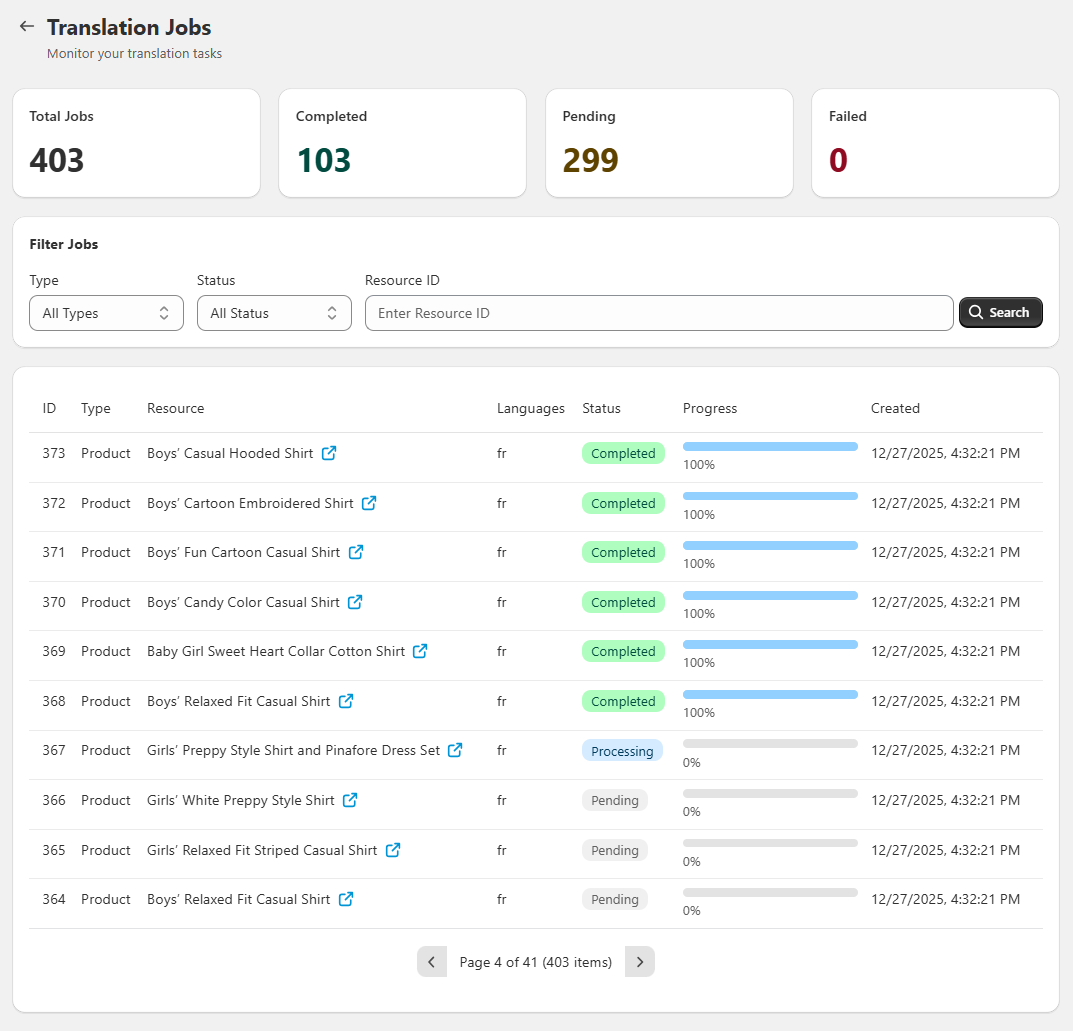
The Jobs page shows all your translation jobs and their status:
- Pending: Job is queued and waiting to be processed
- Processing: Translation is in progress
- Completed: Translation finished successfully
- Failed: An error occurred during translation
Translation Cache
Opus Translate caches translations to improve performance and reduce costs:
- Previously translated phrases are stored and reused
- This speeds up subsequent translations
- You can clear the cache from the Settings page if needed
🤖 Translation Engines
OpenAI GPT
Powered by GPT models, excellent for natural-sounding translations with context awareness.
- ✓ Natural language understanding
- ✓ Context-aware translations
- ✓ Great for marketing copy
Google Gemini
Google's latest AI model with excellent multilingual capabilities.
- ✓ Strong multilingual support
- ✓ 100+ languages
- ✓ Fast and cost-effective
Claude
Anthropic's AI model, great for nuanced and accurate translations.
- ✓ Nuanced understanding
- ✓ Maintains tone and style
- ✓ Good for technical content
🔧 Troubleshooting
Translation job stuck on "Pending"
This usually means the job is in queue. If it remains stuck for more than 10 minutes, try refreshing the page or contact support.
Translation failed
Check the error message in the Jobs page. Common causes include API rate limits or connectivity issues. Try again after a few minutes.
Translations not appearing in my store
Make sure you have the target language enabled in your Shopify store settings under Settings → Languages. Translations are stored as locale-specific versions.
Usage limit reached
Your plan has monthly limits. Check your usage on the Pricing page and consider upgrading if you need more translation tasks.